10 Ağustos 2018 Cuma

Fix iPhone Reminders Not Working in iOS 11.3

How to Fix iPhone Reminders Not Working in iOS 11.3
Tip 1. Check Reminder Settings

Sometimes you fail to hear the reminder because you’ve set the reminder alert to none. Check that before we move on to more invasive solutions. Here’s how you can do that;

Step 1: Go to Settings and then tap on “Sounds”.

Step 2: Scroll down to find “Reminder Alerts” and tap on it.

Step 3: if the reminder is set to “None” select one of the many alert tones available and the next time your reminder “reminds” you to do something you’ll actually hear it.


Tip 2. Turn Off Reminders App from iCloud

You can also try turning off the reminders in iCloud and then turning it back on. This usually has the effect of removing some bugs that may be causing the reminder app too behave abnormally. Here’s how to do this;

Step 1: Go to the Setting app and then tap on iCloud.

Step 2: Find “Reminders” and toggle the switch to “Off.”

Step 3: Wait a few seconds and then turn it on again.


Tip 3. Remove Reminders from Widgets Notification

You can also try to remove the Reminders app from the widget notification. Here’s how to do that;

Step 1: Scroll down from the top of the screen until you see the “Edit” button appear.

Step 2: Tap on this “Edit” button and you’ll see the “Reminder” app in the list of apps.

Step 3: Tap on the red (-) next to it to remove it.


Tip 4. Restore iPhone to Factory Settings

It may seem like an extreme measure to take but if none of the other methods above have worked, you may need to reset your iPhone to factory settings. This means that you’ll erase all the contents and settings on the device. The reason it works is becauseyour Reminders could be affected by a small setting that you may not be able to find. Erasing the settings and contents may be the only way to remove this problematic setting and get your device working normally again. Here’s how to restore an iPhone to its factory settings;

Step 1: Open the settings app on your device.

Step 2: Go to General and then tap on “Reset”.

Step 3: Now tap “Erase Contents and Settings.”

If you had a backup, you can set up the device and restore it from that backup.


Tip 5. Restore Your iPhone System

You could also try to restore the device from an iTunes backup. This process has been known to work for just about any problem your device may be exhibiting. Here’s how you can do that;

Step 1: Connect the iPhone to the computer using USB cables and then launch iTunes.

Step 2: Click on “Summary” and click “Restore Backup” when the option appears.

Step 3: Click “Restore” and if you’re restoring from an encrypted backup, you may need to enter your password.


Gihosoft Total Video Converter is a professional all-in-one video tool that enables you to convert videos and audios into various different formats. You can also download videos from YouTube or other online video sharing sites and convert them easily. Plus, you’re able to personalize your videos with its inbuilt editor, such as, trimming, cropping, applying video effects, adding watermark, subtitles, and more. If you need a powerful and professional desktop video converter program, just download Total Video Converter and follow the step-by-step guide here to have a try.


Jihosoft Android Data Recovery: the best Android Data Recovery software for Windows and Mac to recover deleted contacts, messages, photos, videos, WhatsApp and etc from Android devices.
Gihosoft Free Android Data Recovery can help you easily recover lost data such as photos, videos, contacts, text messages, WhatsApp & Viber chats from Google Pixel/XL or other Android phones effortlessly.


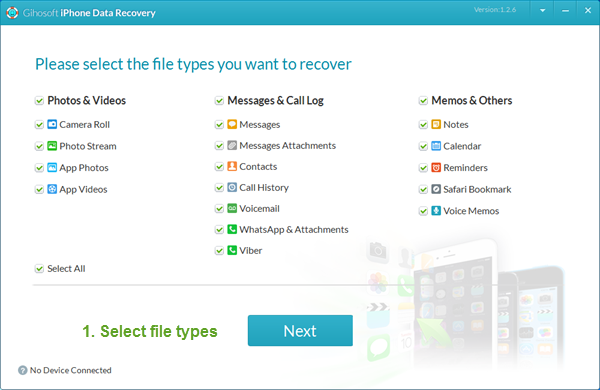
If you lost videos from iOS Camerall Roll which are nowhere to download again, you can use Gihosoft iPhone Data Recovery to get back deleted videos from iOS device including iPhone, iPad and iPod Touch.
Any app suggestions or topic recommendations are appreciated in the comments down below.


5 Ağustos 2018 Pazar

Top 5 Pregnancy Tracker Apps for iPhone and Android 2019

Top 5 Pregnancy Tracker Apps for iPhone and Android

There are different pregnancy tracker apps which are helpful to track the growth of your baby. These apps are not an alternative to scientific tests but can help you to spend a good time during pregnancy. Different pregnancy apps allow you to use various features and you would track the baby growth and necessary information. These apps help you understand your diet needs and also allow you to connect with others, which you can take different benefits from.
Top 5 Pregnancy Tracker Apps to Download in 2018

Have a look at the following best pregnancy tracker apps for iPhone and Android to track your pregnancy.
1. Pregnancy +

It is an excellent app which is on the list of best pregnancy tracker apps. You can effortlessly download and install this app too for your Android and iPhone. You can take help from the excellent and amazing visuals of babies and can understand the situation. Using this app, you are going to track everything.


You can see the different useful images and messages after each week and help you to spend considerable time to help your baby. Additionally, there are various tools which are helpful to understand your baby moments in your body.

Get Pregnancy App for iOS Get Pregnancy App for Android
2. WebMD Pregnancy

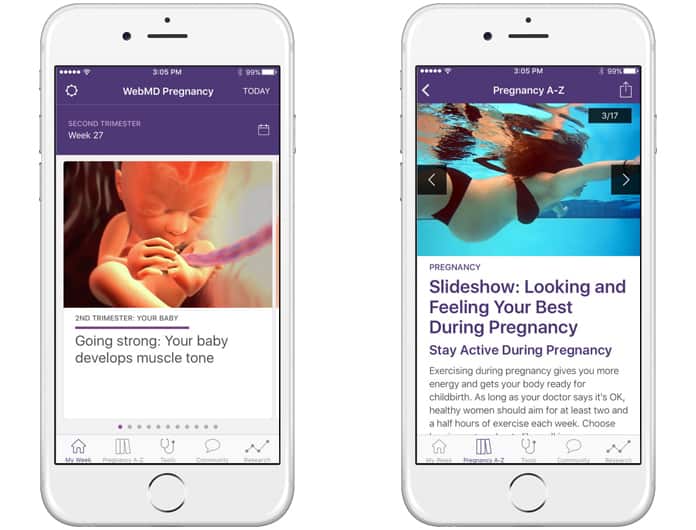
It is a great pregnancy checker app which is well known all across the world. It can quickly and truly access the growth of your baby on a weekly basis. You can check the condition and can learn different values about your baby moments. Also, you are free to see different pregnancy photos to spend happy and relax images.


You can also allow viewing the different sections of different pieces of advice about pregnancy. These sections are helpful and try to provide you with a lot of success. You can easily get this app for iOS and start right now.

Download WebMD for iOS
3. The Bump – Pregnancy Countdown

It is a great pregnancy tracker app which is useful and updated on a regular basis. You will get different researches and articles which can help you to know everything about your different pregnancy stages and time duration.


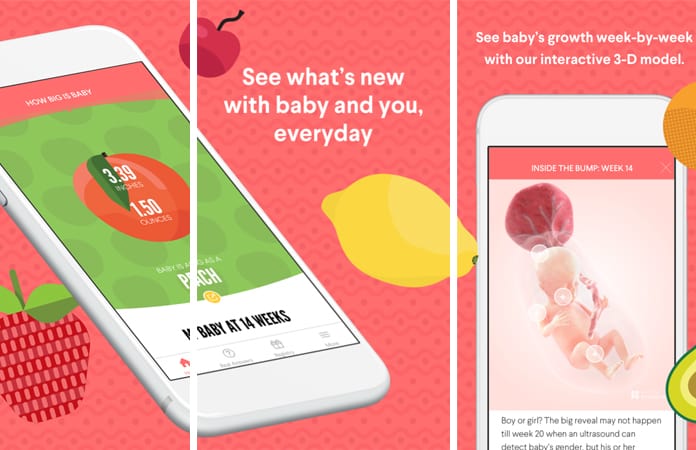
This app is lovely and provides you 3-D visuals of developing a baby. You will get new things and sources every day to track the development of your baby and the changes in your own body.

Get The Bump for iOS Get The Bump for Android
4. Ovia Pregnancy Tracker & Baby Countdown Calendar

It is another app which is used for tracking the pregnancy and spend good pregnancy time. This app allows you to keep in touch with other moms and also can ask different useful questions to other expected moms and experts.


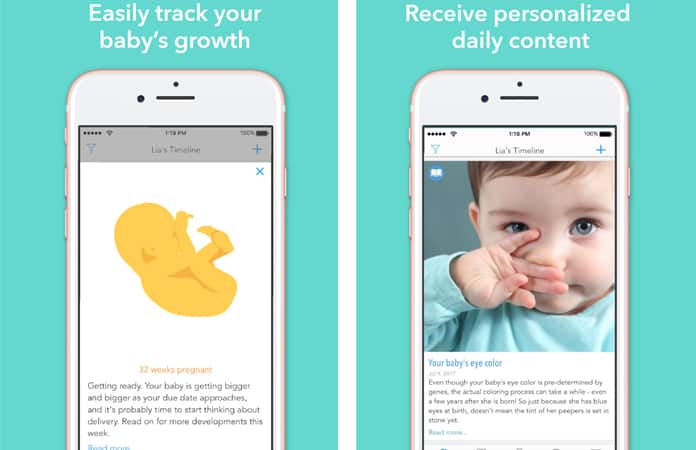
You would see different visuals representing the growth stages of the baby. In short, this is the best community app allowing you to know everything about the development process of your baby.

Get Ovia for iOS Get Ovia for Android
5. I’m Expecting Pregnancy App

This is a great app which provides you with everything of your interest related to your baby. Your baby is your love, and this app offers you every kind of information about your baby. You can also search and find different names from the database of this app.


It will help you to find the best name for your baby. You can also see different visuals and baby growth positions.

Get Pregnancy App for iOS Get Pregnancy App for Android

Also, don’t worry if you accidentally lost any important photos or messages with your families or friends during your pregnancy, you can easily recover the lost data on your iPhone or iPad with the professional tool Gihosoft iPhone Data Reocvery.

Pregnancy tracker apps can be really fun and effective when it comes to tracking you and your baby’s growth. So which one of these did you liked the most? Share your experience of your baby growth tracking with these apps, or leave other good app suggestions in the comment section below.

Gihosoft Mobile Transfer: 1 Click Data Transfer from Phone to Phone Gihosoft Mobile Transfer is a powerful phone to phone transfer software lets you easily transfer contacts, music and more between mobile phones.

Any app suggestions or topic recommendations are appreciated in the comments down below.


28 Temmuz 2018 Cumartesi

How to Fix Bluetooth Not Working Issue in iOS 12


How to Fix Bluetooth Not Working Issue in iOS 12


Surprisingly, one of my friends, who had also encountered this issue, didn’t have to go that far. He was able to get rid of the problem by just giving Bluetooth and iPhone a fresh start. Have you run into the same problem? The following solutions can help you resolve it!
Give a Fresh Stance to Bluetooth


In most cases, you can bring Bluetooth into action by refreshing it. I have found success by using this trick many a time. So, try it out first.


Step #1. Open Settings app → Bluetooth → turn off the switch next to Bluetooth.


Step #2. Now, reboot your device.


On iPhone X, 8/8 Plus: press and release volume up button, press and release volume down button. Then, press and hold the side button until Apple logo appears.


On your iPhone 7/7 Plus: press and hold the side and volume down buttons at once.


On your other iPhone and iPad: press and hold the home and ON/OFF buttons simultaneously.


Step #3. Once your device has rebooted, turn on Bluetooth.


The problem should be fixed now. Check out if you have got success with it.
Disconnect Your iPhone from All the Devices and Try To Connect them Again


There is another hack that can come handy in resolving the Bluetooth issues is making the iPhone forget the particular device and then reconnect to it.


Step #1. Launch Settings app → Tap on Bluetooth.


Step #2. Now, tap on the “i” button next to the connected device. Then, hit Forget thisDevice and confirm.


Step #3. Next, turn off Bluetooth.


Next up, restart your device. Once it has rebooted, turn on Bluetooth and try to connect to the accessory.
Reset Your Bluetooth Accessory


The problem could be with your Bluetooth accessory as well. Ensure that it’s got enough juice to run properly. If it’s got sufficient power and still not able to connect to the iPhone, try resetting it to factory default. The process varies based on device, so take the help of user manual.
Reset Network Settings


Resetting the network to factory default is one of the most reliable hacks that can get rid of the connectivity issues. Therefore, it’s apt to give it a shot as well. Keep in mind; it will clean up all the Wi-Fi passwords. So, ensure that you have saved them.


Step #1. Launch Settings app → General → Reset.


Step #2. Now, tap on Reset Network Settings. Then, enter your passcode and confirm.


Once your device has restarted, the problem will, most likely, be gone. But just in case you are still staring at disappointment, reset the entire settings on your device. Yes, it’s a radical step. But at times, it’s worth having a go to get the fix.


Step #1. Launch Settings → Tap on General → Reset.


Step #3. Now, tap on Reset All Settings. Then, enter your iPhone passcode and confirm.


Don’t be disappointed if the problem has continued to plague your device. There is one more trick to try.
Update iOS on your Device


In most cases, the software update can get your work done. I expect it to maintain its healthy record. Be sure, your device has at least 50% battery and is connected to Wi-Fi.


Go to Settings app on your iOS device → General → Software Update.


Now, download and install the update.
What If None of the Above Solutions Work…


If none of the above tricks have fixed the problem, it would be wise to downgrade from iOS 12 to iOS 11 and wait for the official version. I know you might be a bit unhappy with this statement. But there are times it’s better to take a backseat and wait for the ideal opportunity to come your way.


Ads:


If you lost videos from iOS Camerall Roll which are nowhere to download again, you can use Gihosoft iPhone Data Recovery to get back deleted videos from iOS device including iPhone, iPad and iPod Touch.Jihosoft iPhone Backup Extractor Extract and recover all types of data from iPhone backup files, such as camera roll photos, videos, SMS, contacts, reminders, WhatsApp, and etc.Gihosoft Android data recovery Free is a super awesome software specialized in Android file recovery.


Wrapping up:
I guess; you have finally got over the line. Let me know which one of the above solutions worked for you. And yes, if you found success using other tricks (not mentioned above), do tell us about that as well.

23 Temmuz 2018 Pazartesi

How to Fix Wi-Fi not working in iOS 12 on iPhone and iPad

How to Fix Wi-Fi not working in iOS 12 on iPhone and iPad
Wi-Fi not working in iOS 12 on iPhone and iPad
Fix 1 : Quick Fix iOS 12 WiFi automatically disconnected

Step 1: Open “Settings” and tap “Wi-Fi”.

Step 2: Tap on small information (i) icon which is near to the connected “Wi-Fi Network”.


Step 3: Tap on “Forget This Network” and confirm it.


Step 4: Now, disable “Wi-Fi”.

Step 5: Restart iPhone/iPad


For iPhone X/8/8 Plus

Step 1: Press and release Volume Up button.

Step 2: Press and release Volume Down button.

Step 3: Press and hold side button and release when you see Apple logo.


For iPhone 7/7 Plus

Step 1: Press and hold the Volume Down button and Power button until Apple logo appears on the screen.


For other iPhone/iPad

Step 1: Press and hold the Home button and Side button together and release when Apple logo comes on screen.

If you lost videos from iOS Camerall Roll which are nowhere to download again, you can use Gihosoft iPhone Data Recovery to get back deleted videos from iOS device including iPhone, iPad and iPod Touch.

Jihosoft iPhone Backup Extractor Extract and recover all types of data from iPhone backup files, such as camera roll photos, videos, SMS, contacts, reminders, WhatsApp, and etc.


For iPhone X/8/8 Plus

Step 1: Press and release Volume Up button.

Step 2: Press and release Volume Down button.

Step 3: Press and hold side button and release when you see Apple logo.


For iPhone 7/7 Plus

Step 1: Press and hold the Volume Down button and Power button until Apple logo appears on the screen.


For other iPhone/iPad

Step 1: Press and hold the Home button and Side button together and release when Apple logo comes on screen.
Fix 2: Disable/Enable Ask to Join Networks

Can’t say it will work for your iPad, but at least we can try to fix Wi-Fi not working in iPad with this solution.

Step 1: Open “Settings” and tap “Wi-Fi”.

Step 2: Disable “Ask to Join Networks”.


Now restart the iPhone and again enable “Ask to Join Networks”.
Fix 3: Turn Off/On Wi-Fi Assist

Few times disabling and enabling the Wi-Fi assist has worked for me. Also your WiFi and Mobile Data connection switching automatically while you are out of range. You decided to work only on WiFi then turn off Mobile date. And Also follow the below steps,

Step 1: Go to “Settings” on iPhone.

Step 2: Open “Mobile Data” or “Cullular”.

Step 3: Scroll down to last of the screen, Find and Disable “Wi-Fi Assist”.


Fix 4: Reset Network Settings

iOS 12 Cannot connect to WiFi on iPhone, iPad. Every network oriented problem can be resolved by small reset that is Reset Network Settings.

Step 1: From the “Settings”, open “General”.

Step 2: Next, open “Reset” and tap “Reset Network Settings”.

Step 3: Confirm it and enter the passcode to proceed.

Re-fix all the network related setting only remove network data only.
Fix 5: Check your Wi-Fi Router

If Wi-Fi router is causing any issues, then it is better to remove the power source and plug it back again.

Reset DNS Cache on your Mac & Windows (Open command prompt (“Windows + R key” > type “CMD”) and run this command: ipconfig/flushdns)
Fix 6: Disable VPN

If you are using VPN, there are chances that it might be affecting the Wi-Fi network. Disable VPN and connect to Wi-Fi network.

Step 1: In the “Settings” Tap “General”.Sponsor ads:
Gihosoft RePicvid Free Photo Recovery Software provides a free photo recovery software for windows to help users recover the deleted or lost photo for free.
If you lost data after you updated to a new iPhone, you can always use Gihosoft iPhone Data Recovery to get the data back from the old iPhone or backup.You may also like: iphonerecovery.com
If you use android phones, please choose Gihosoft Android Data Recovery.With Gihosoft Android Data Recovery, no longer afraid of data loss!

Step 2: Scroll down and tap on “VPN” and disconnect it.


22 Temmuz 2018 Pazar

How to Fix iTunes Won’t Open on Windows 10

How to Fix iTunes Won’t Open on Windows 10

Useful Tips for iTunes Won’t Open on Windows 10

If you would like to try some tips before acquiring the ultimate solution to all iTunes problems – iMyFone TunesFix, then follow these tips to get your iTunes opening again.

1. Uninstall and Reinstall iTunes

Here are the steps to uninstall iTunes and its related components from your PC, and install them back. NB: Using TunesFix to uninstall/reinstall iTunes will give you a better result.
Step 1: Go your Windows 10 Search bar and type “Control Panel” then click the on it when it appears in the search result.
Step 2: Click “Programs”, search for the following software, and uninstall them in the following order.
  • iTunes
  • iTunes Apple Software Update
  • Apple Mobile Device Support
  • Bonjour
  • Apple Application Support 32-bit
  • Apple Application Support 64-bit.
uninstall ituens
Step 3: Open Local Disc C, search and delete the folders: iTunes, Bonjour, and iPod if they exist. Then go to “Common File” folder and delete Mobile Device support, Apple Application Support, and CoreFP.
Step 4: Restart your Windows 10 PC.
Step 5: Go to www.apple.com and download iTunes. Open it and install it on your PC.

2. Reconfigure Your Windows 10 Firewall

Windows 10 firewall is the reason why iTunes is not opening in most cases. Therefore, reconfiguring your firewall to permit iTunes can help solve this issue.
Step 1: Type “firewall.cpl” into Windows’ search bar, and click on it to open it.
Step 2: Click “Allow an app or feature through Windows Firewall > Change settings”.
Step 3: Select iTunes for both private and public networks, and then Bonjour for the private network only. If iTunes and Bonjour aren’t in the list, click “Allow another app” then click Browse and go to “C:\Program Files\iTunes\” and “C:\Program Files\Bonjour\” for iTunes and Bonjour respectively. Select iTunes/Bonjour then click “Add” to add it to the list of programs.Jihosoft iPhone Backup Extractor Extract and recover all types of data from iPhone backup files, such as camera roll photos, videos, SMS, contacts, reminders, WhatsApp, and etc.
Gihosoft Free iPhone Data Recovery is a professional iPhone Data Recovery software to get back all your lost text message, photo, video, call history, note, contact and more from iPhone/iPad/iPod Touch.

windows firewall
Step 4: Click “OK” and close the firewall window.